Annotate Anything
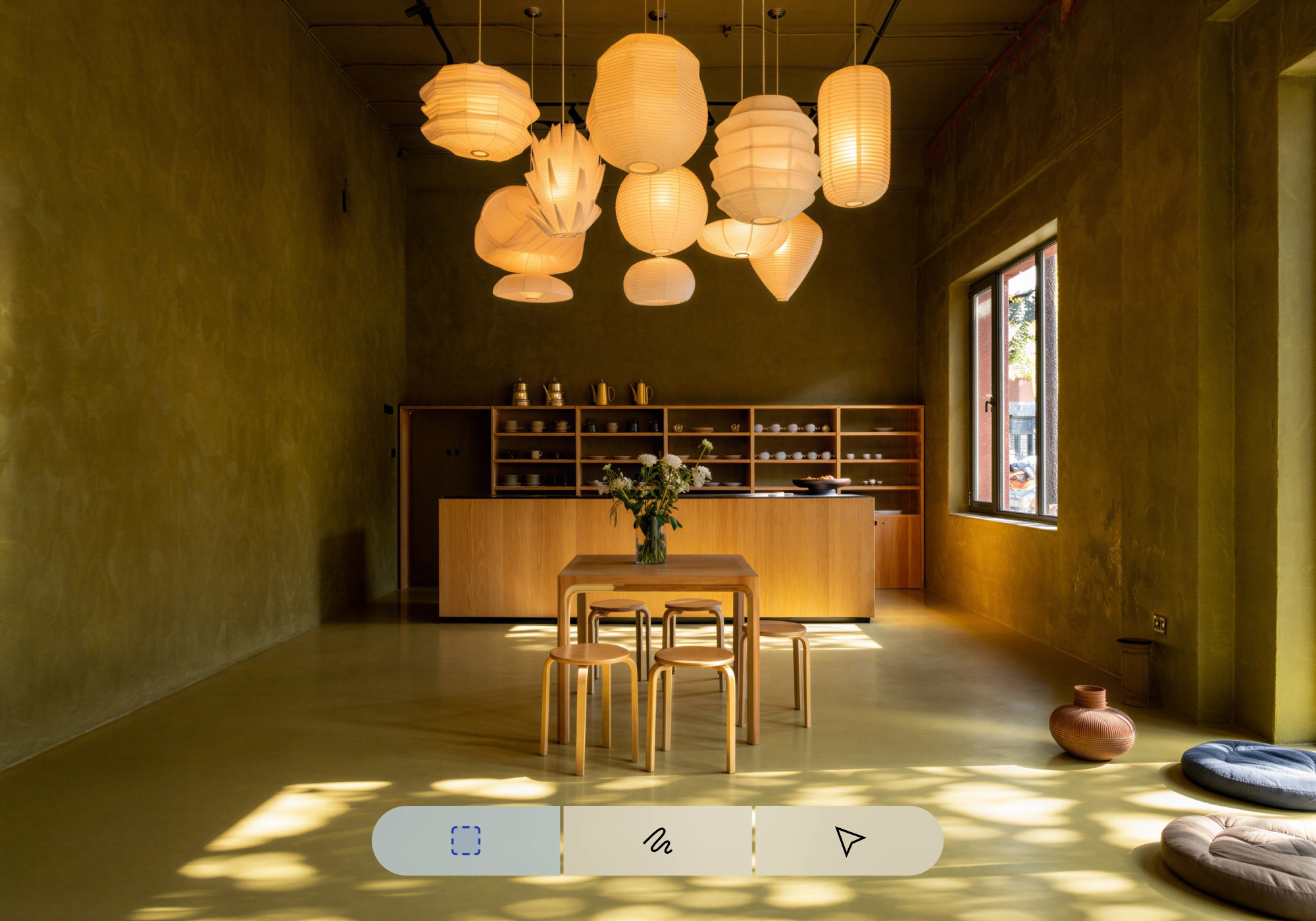
Show, don't tell. With annotations, you can now add instructions right on your image to make detailed changes. Mark the area you want to edit or sketch it out right on the image, and bring your vision directly into focus.
What you can do with Annotations
Annotations let you mark directly on your image, then tell us what to do with it. There are three tools, each built for a different creative moment.
Spotlight allows you to pin an object you want to edit or highlight a general area you want to add things into. Use it when you know where you want a change by outlining a specific region to shift the mood of a background, open up a corner, or edit the details within a space.
Draw lets you sketch a rough shape and describe what it should become. All you need to do is illustrate the specific visual appearance of an object you want to add in. Your scribbled oval becomes a boulder. Your stick figure becomes a person in a red coat. Placement is yours, then watch it come to life.
Select snaps to a specific object in the scene. It's great for picking out existing, definite objects and moving or resizing them. Use it when you have a clear target: change it, replace an element, or remove something without touching what's around it. You can also collage and add objects to your image.
Add Annotations to get your details right
- Choose your annotations tool in the composer
- Spotlight a region by dragging and dropping the box to select an area
- Draw any sketch directly on your image, then describe the edits
- Select a region of your image to resize, add, or remove objects
- Collage to add specific objects to your image
No more searching for words to describe a change. Just point, mark, and tell us what you want.
Annotations are available now — open any image to get started at reve.com.