Introducing Live Layers
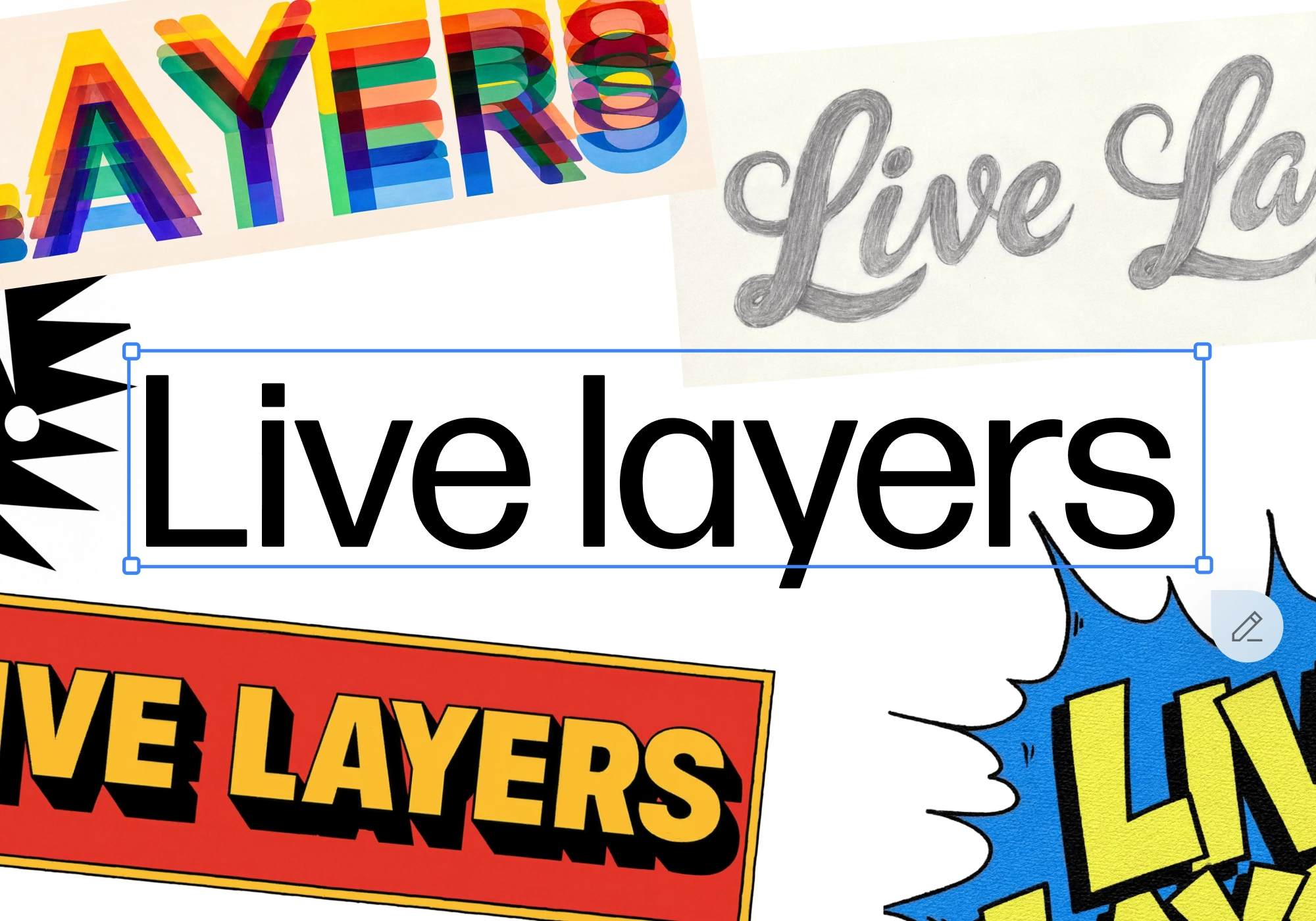
With Live Layers, you can now add your own text and graphics directly onto any image, right in the editor. Drop in a headline, subtitles, a logo, or an image, and craft your image exactly the way you see fit. Graphic design is easier than ever.
What you can do with Live Layers
Live Layers let you build directly on top of your image, layer by layer.
Add Text lets you type out your own words straight onto the image. Drop in a headline, a caption, a label, or a callout, then adjust the font, size, color, and placement until it's just right. You can adjust the style, line height, alignment, spacing, position, rotation, blend, and opacity directly in the tool. Bring your own typography into Reve to perfect your design.
Composite Text in the image with an annotation. Bring your text directly into the scene and harmonize it onto your generated image.
Add Image lets you add logos, shapes, icons, and other visual elements on top of your image. Drop in an arrow to point something out, a badge to mark a moment, or a shape to frame a detail. Use it when you want to highlight, decorate, or complete a scene with elements that aren't in the original photo.
Polish your image with Text and Graphics
- Add text from the panel, then select your font, style, size, line height, alignment, and more
- Drop in graphics like logos, shapes, icons, and stickers, then resize and reposition them freely
- Layer multiple text and graphic elements to build out a full composition
- Adjust color, opacity, and layering order so everything sits exactly where you want it
- Move, resize, or delete any layer at any time without affecting the rest of the image
Layers bring more controllability and precision to your image layout in the Reve editor. No more flattening your ideas into a single shot. Just add, adjust, and layer until it's right.
Live Layers are available now — open any image to get started at reve.com.